Overview > Recents
Recents gives you a view of what has happened across a Site over the past 48 hours.
It brings recent network activity and node events into one place, so you can quickly understand what is happening without checking individual devices or separate tools.
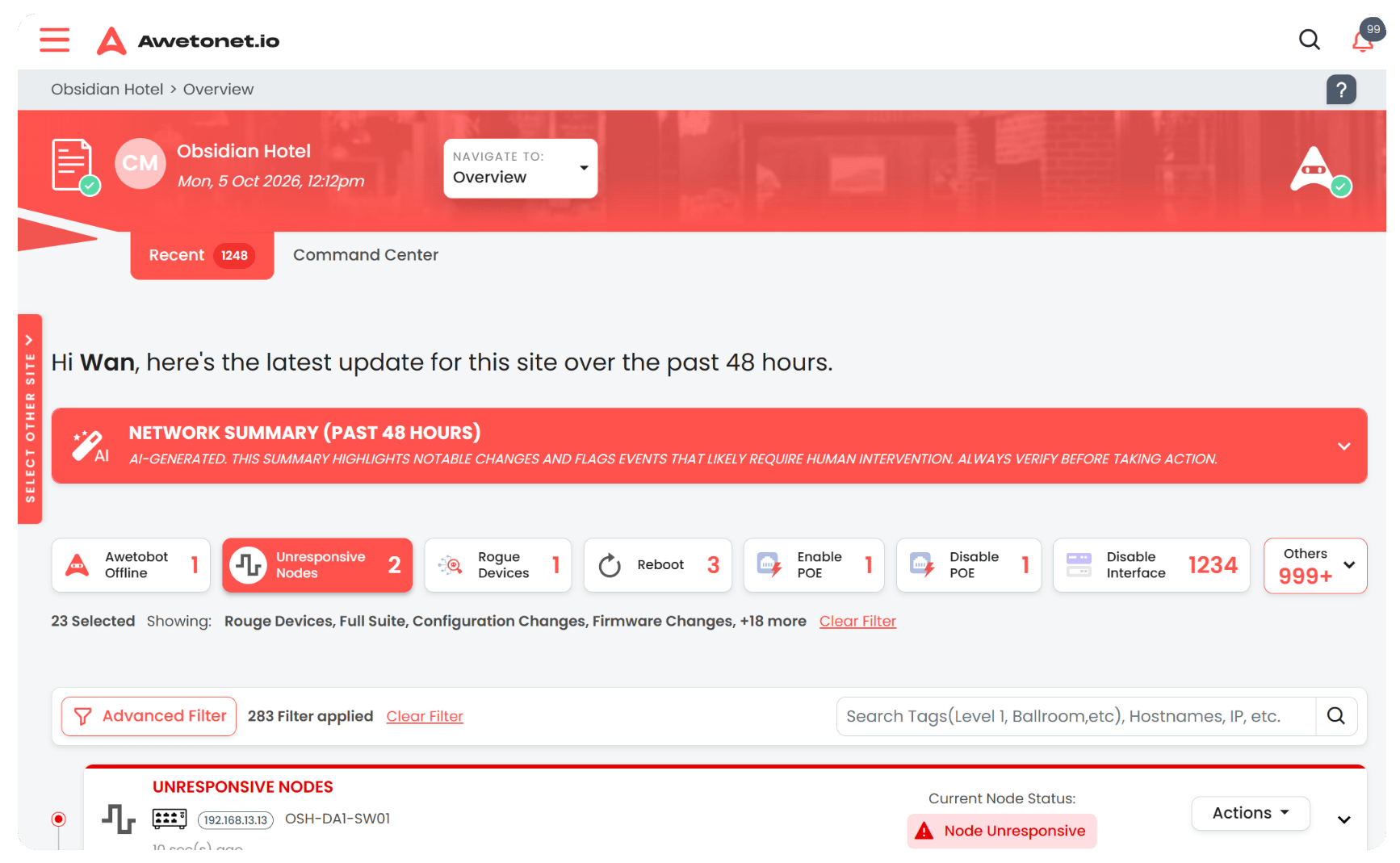
AI Summary
At the top of Recents, you will find an AI Summary.
When a node becomes unresponsive, the AI Summary analyses the available information and provides a concise explanation of what may be happening.
Depending on the information available, the summary can include:
- Possible causes of the problem
- Relevant network conditions or events
- What to check
- Possible ways to resolve the problem
This gives you a starting point for troubleshooting instead of having to work through the problem from scratch.
Why it helps
The AI Summary can help you:
- Start troubleshooting faster — get an initial explanation as soon as a node becomes unresponsive.
- Reduce investigation time — see relevant information together instead of manually piecing it together.
- Understand what to check next — use the suggested causes and corrective actions as a starting point.
- Give engineers useful context — quickly understand what happened before accessing the affected device.
Timeline
Below the AI Summary is a timeline of activity from the past 48 hours.
The timeline records activity across the Site, including activity involving individual nodes.
Examples include:
- Node reboots
- PoE being disabled or enabled
- Network changes
- SSH sessions
- Web GUI sessions
- Node becoming unresponsive
- Other network and node activity
This gives you a chronological view of what has happened, rather than requiring you to check each node individually.
Unresponsive node events
When a node becomes unresponsive, related activity is grouped within the event.
This lets you see the activity surrounding the problem in one place. For example, you may be able to see what happened to the node before it became unresponsive and what activity occurred afterwards.
This can make it easier to identify a possible sequence of events leading to the problem.
Filters and search
The timeline includes filters at the top so you can narrow down the activity you are looking for.
You can filter by:
- Event type
- Node
- Tags
You can also search the timeline.
These controls can be used together to quickly narrow a busy Site down to the events that matter.
Why it helps
Filtering and search help you:
- Find relevant events faster — focus on the activity related to a particular problem.
- Investigate a specific node — see recent activity involving one device.
- Follow a type of activity — such as reboots, PoE changes or access sessions.
- Reduce noise — hide unrelated activity when investigating an incident.
- Understand the sequence of events — use the timeline to see what happened before and after an issue.
Using Recents for troubleshooting
Recents is particularly useful when something goes wrong.
Instead of starting with a device and manually working backwards, you can start with the Site's recent activity:
Unresponsive node
       ↓
AI Summary
       ↓
Possible causes
       ↓
Related activity
       ↓
Timeline
       ↓
Investigate and resolve
This gives you both a quick explanation and the underlying activity needed to investigate further.
Recents is not just a record of what happened. It gives you a way to quickly understand what is happening across your Site and decide where to investigate next.