Licensed
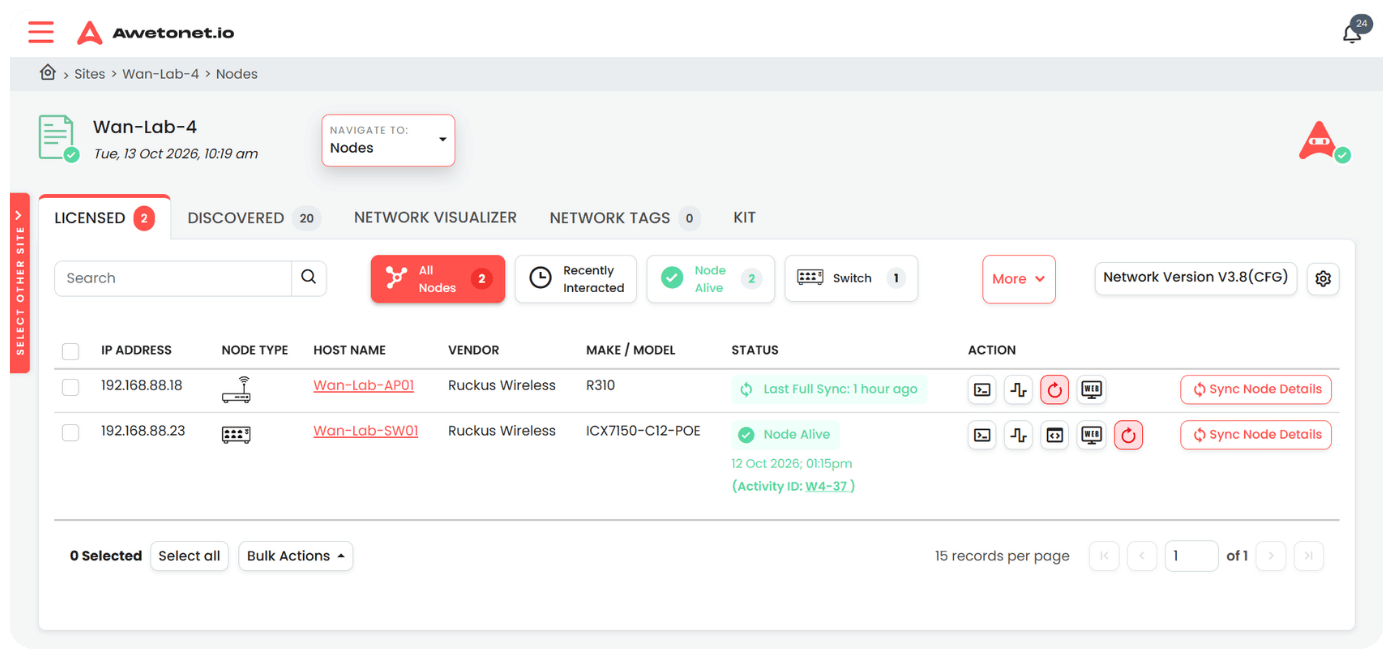
The Licensed tab displays the equipment licensed for use with Awetonet.io at the current Site.
From this table, you can find equipment, check its status, access devices, inspect configurations and perform supported network operations. You can also select multiple nodes to perform bulk actions.
The information and actions available for each node depend on its capabilities, connectivity and your assigned permissions.
Find a node
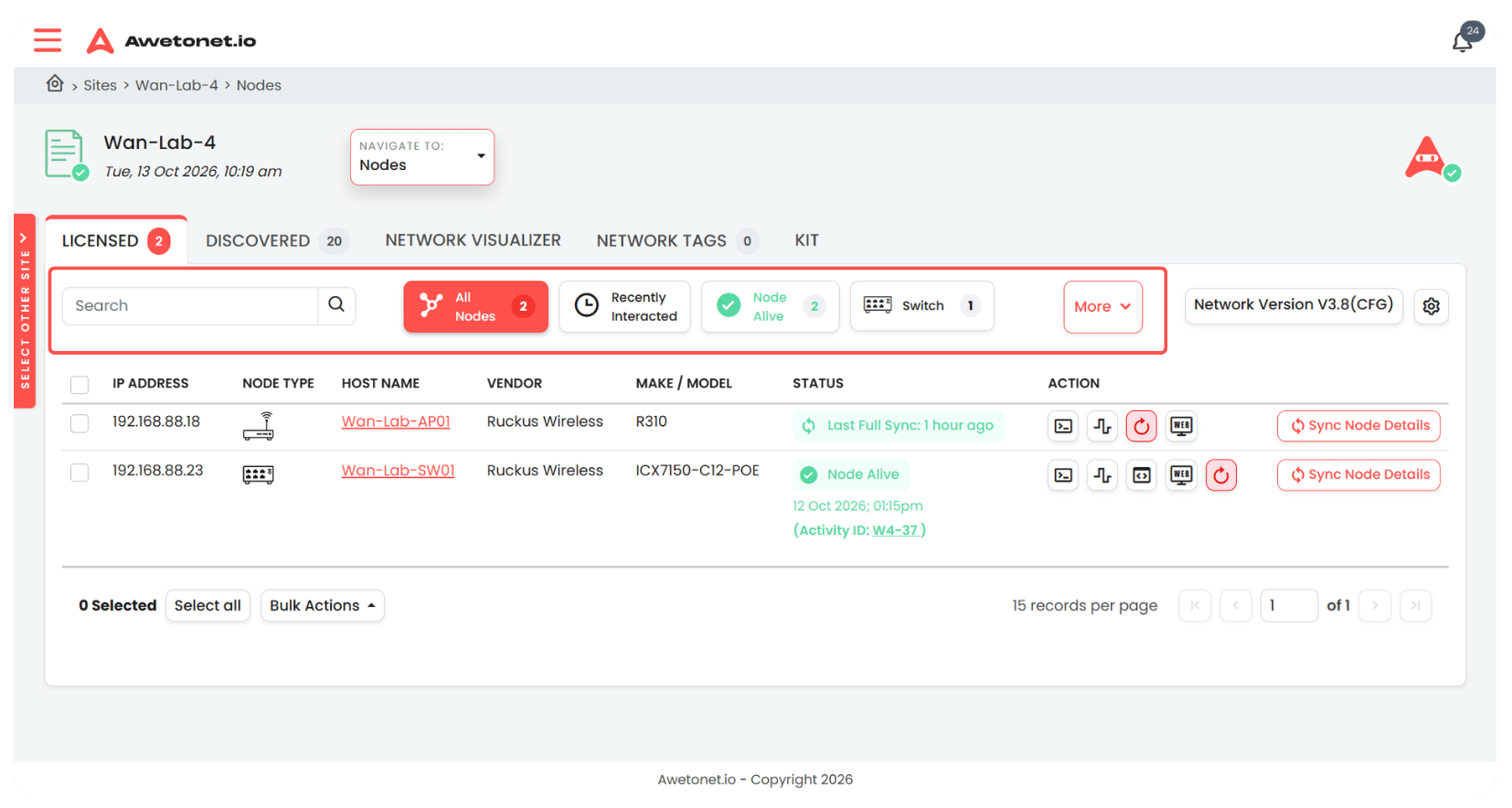
Use the search field above the table to find equipment by:
- IP address
- Hostname
- Vendor
- Make or model
- MAC address
You can also narrow down the results using the available filters:
- Node type — show specific types of equipment.
- Vendor — show equipment from selected vendors.
Search and filters help you locate the equipment you need without manually browsing the entire Site.
Network version and Site settings
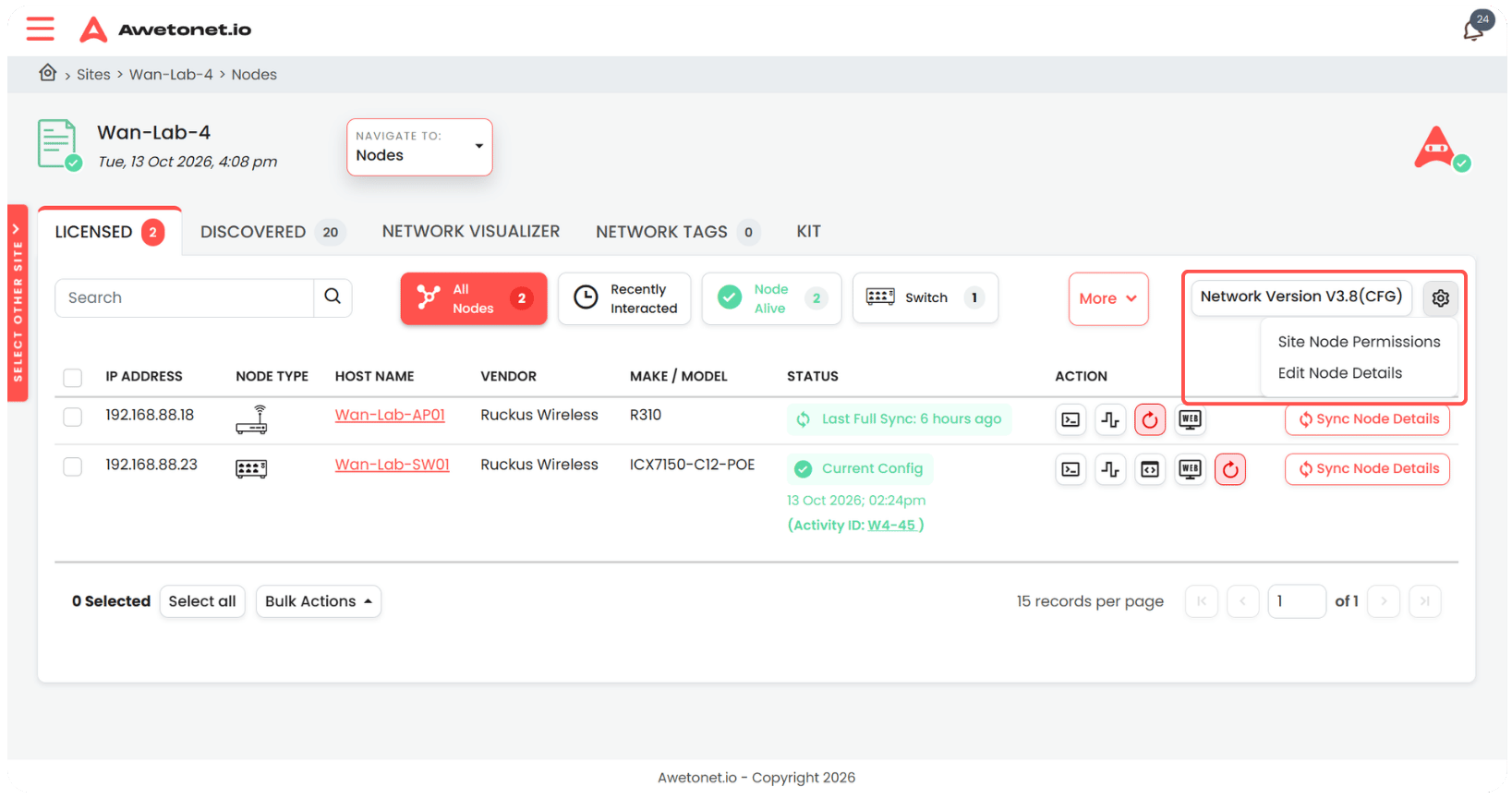
The area above the table displays the current network version and provides access to additional Site-level settings.
Network version
The network version tracks changes detected by Awetonet.io across the network. Whenever a network change is detected, the version increases automatically.
This gives you a way to identify whether the recorded state of the network has changed over time.
Site Node Permissions
Site Node Permissions lets authorised users define which actions users with a particular role can perform on specific nodes.
Permissions can be configured based on the user's role, the action and the affected node.
For example, you can prevent users with the Engineer role from rebooting the switch core-01.
This allows you to restrict disruptive operations on critical equipment while still allowing users to perform other permitted tasks.
Edit Node Details
Edit Node Details lets authorised users manage additional information about network equipment, including:
- Date Purchased
- Purchased From
- Purchase Order (PO) Number
- Warranty Period From
- Warranty Period To
- Project Code
- Date Installed
Keeping these details up to date helps with asset management, warranty tracking and maintenance planning.
These fields complement the operational information collected about each node.
The available settings and actions depend on your assigned permissions.
Understand the node table
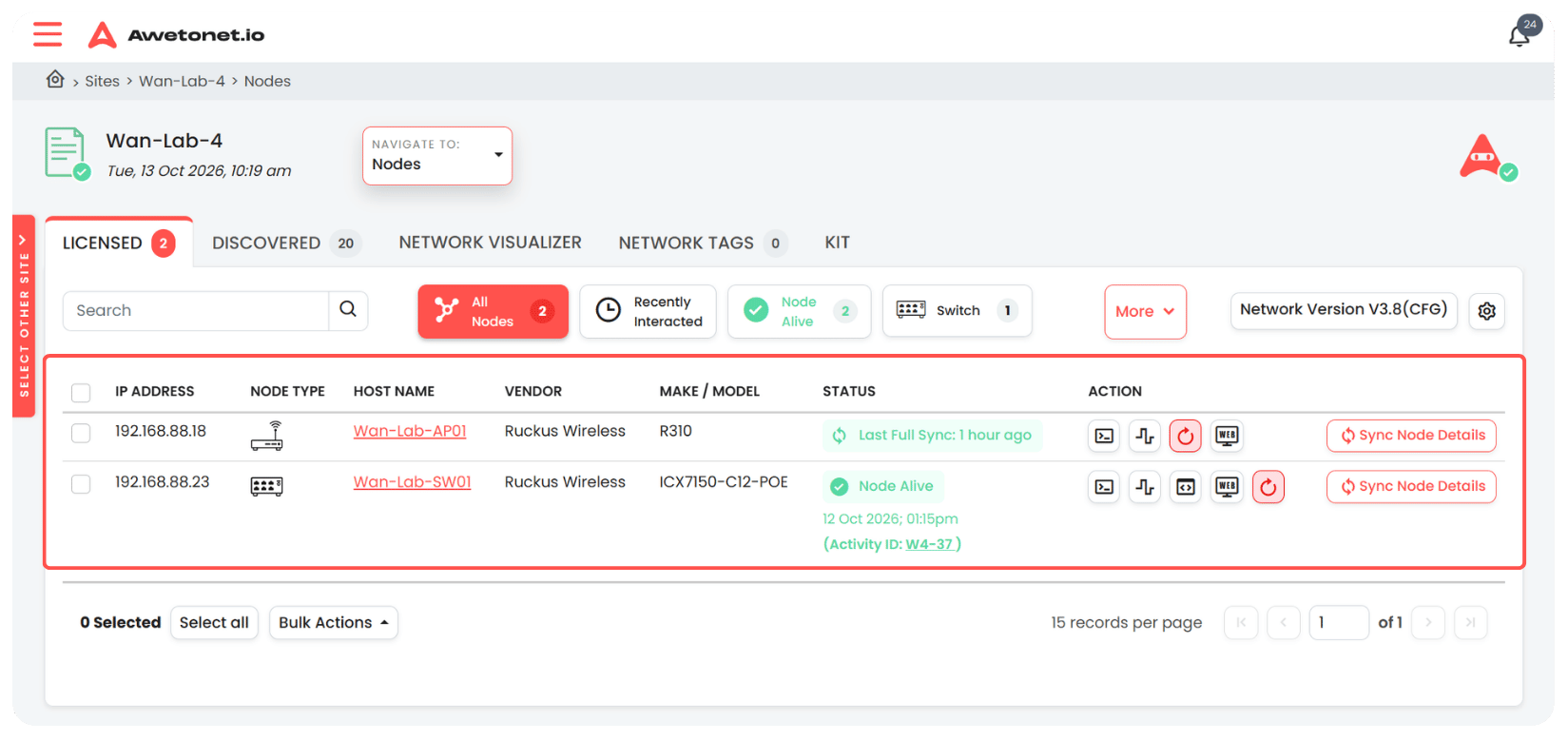
The table lists licensed equipment, with columns arranged as follows:
| Column | Description |
|---|---|
| IP address | The node's IP address. The table is initially sorted by this column. |
| Node type | The type of equipment. |
| Hostname | The node's hostname. Click the hostname to view more details about the node. |
| Vendor | The equipment vendor. |
| Make/Model | The equipment's make and model, when available. |
| Status | Recent synchronisation information, activity history and current activity. |
| Actions | Quick actions available for the node. |
Understand node status
The Status column helps you understand what Awetonet.io has recently done with a node and what is happening now.
Depending on the node and its activity, the status may show:
- Last sync — when the node details were last synchronised.
- Last activity — the most recent activity performed on the node and whether it succeeded or failed.
- Current activity — an operation currently in progress.
For example, if another user is initiating a Web Terminal session, the status can indicate that an activity is underway.
This helps you understand the node's recent history and avoid unknowingly duplicating work that is already in progress.
Quick actions
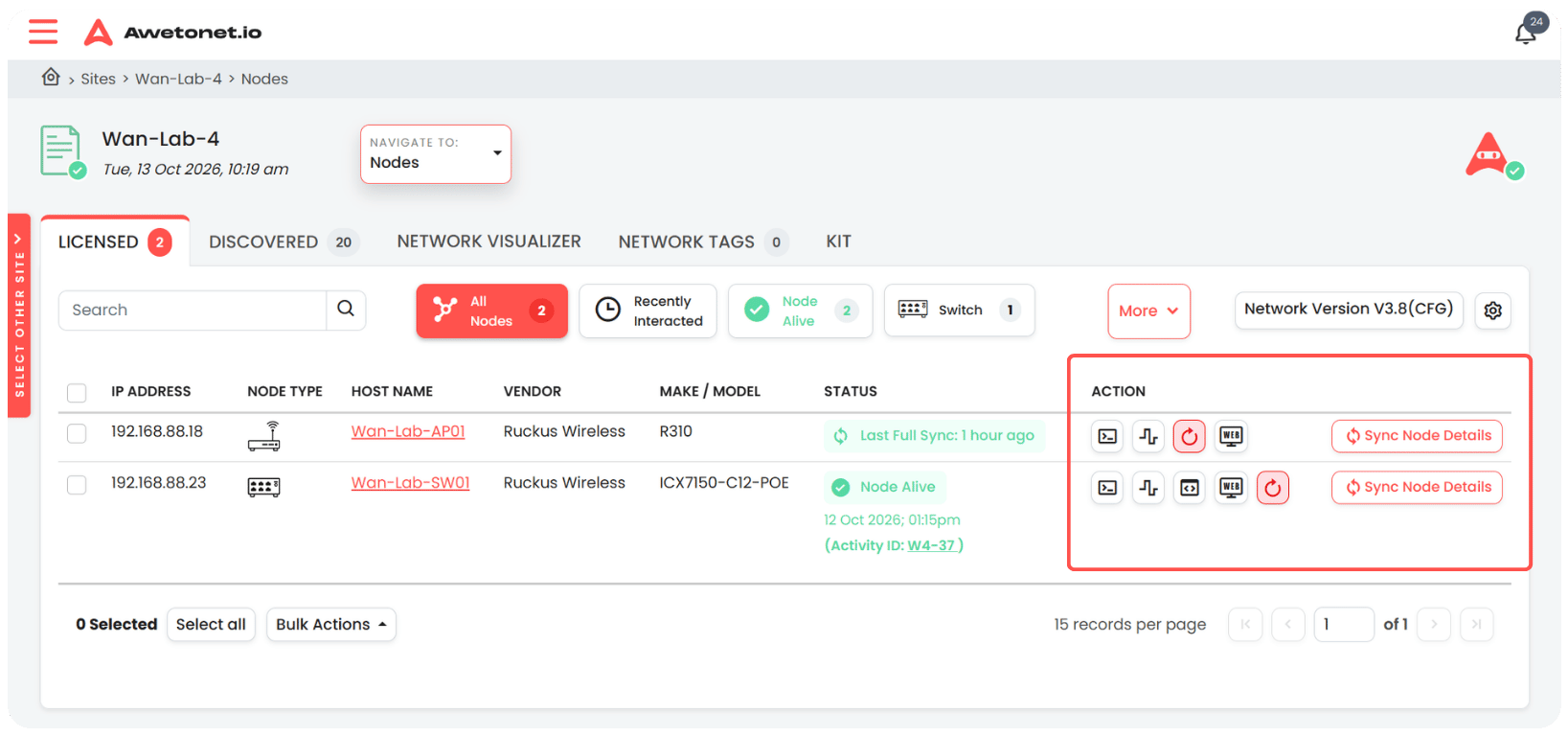
The Actions column provides shortcuts for common node operations. The available actions depend on the node's capabilities, connectivity and your permissions.
Web Terminal
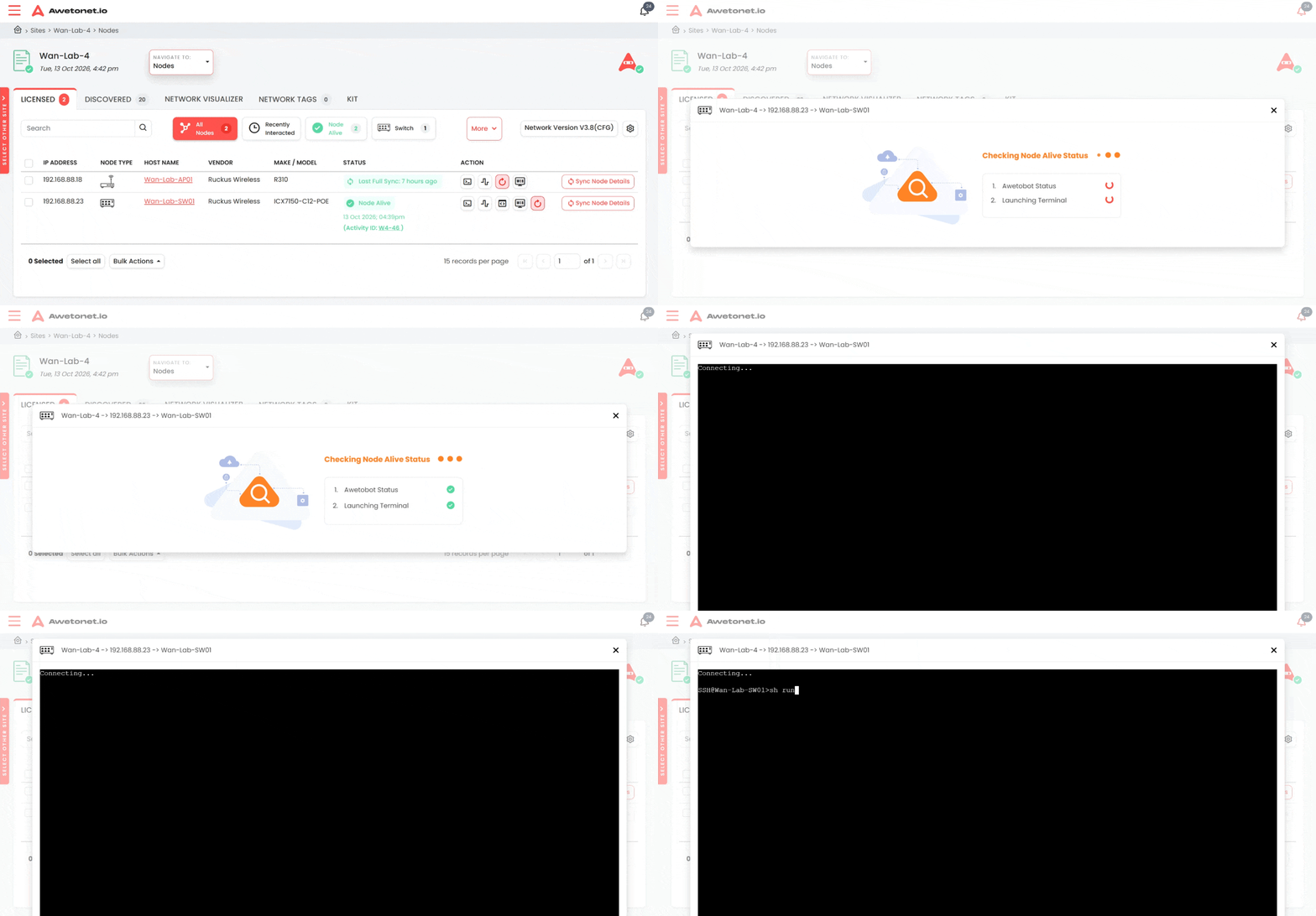
Opens a terminal session to the node when SSH access is available.
Use it to access the device's command-line interface without switching to a separate terminal application.
Check Alive
Checks the node's reachability using ping and port checks.
Use it to investigate connectivity problems and determine whether the expected network services are reachable.
Web GUI
Opens the node's web management interface when the relevant web GUI port is available.
This allows you to access supported device management interfaces directly from Awetonet.io.
View Current Config
Displays the node's current configuration when supported information is available.
Use it to inspect the device configuration during troubleshooting or maintenance.
Reboot
Initiates a reboot of the node.
A reboot can interrupt network services and affect connected users. Verify that the action is appropriate before proceeding.
Sync Node Details
Synchronises the node's details to refresh the information available in Awetonet.io.
Use this when you need to refresh the recorded node information.
Bulk actions
At the bottom of the table, you can select multiple nodes and apply a supported bulk action.
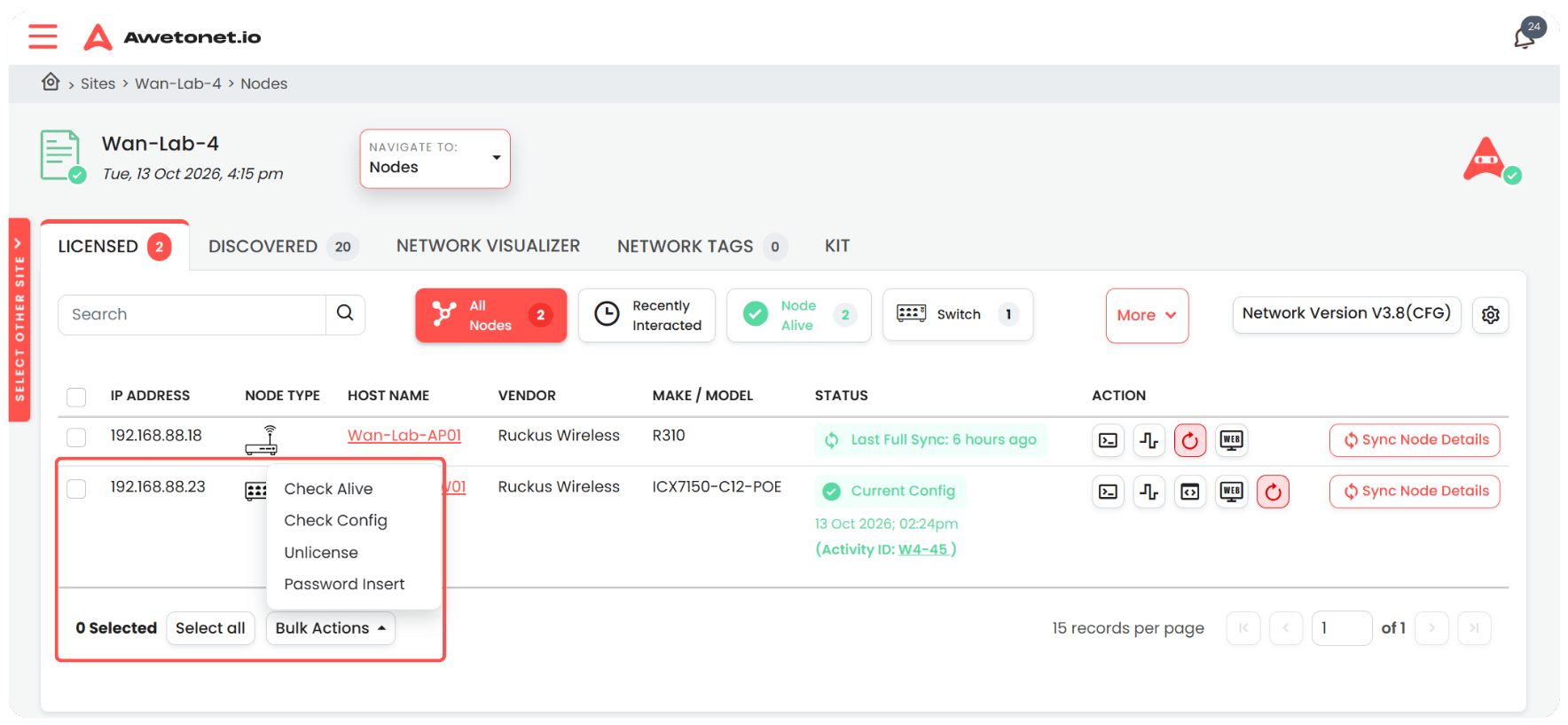
To perform a bulk action:
- Select the nodes you want to include.
- Choose the required bulk action.
- Follow any prompts to complete the operation.
Available bulk actions include:
- Check Alive — check the reachability of the selected nodes.
- Check Current Configurations — check the current configurations of the selected nodes.
- Unlicense — remove the selected nodes from the licensed list.
- Password Insert — enter usernames and passwords for multiple selected nodes in one operation.
Password Insert saves you from having to enter credentials separately for each node. Check the selected nodes carefully before applying credentials, particularly when the nodes use different login details.
Bulk actions are useful when you need to perform the same operation across several devices instead of repeating it for each node.
Before applying an action to multiple nodes, verify your selection carefully. Some operations can affect network availability or change how equipment is managed.
Permissions
Access to node information and actions is controlled by your assigned role.
Some actions may be unavailable if the node does not support them, the required service port is not available, or your role does not permit the operation.
If you cannot see a setting or action, your assigned role may not have the required permissions. Contact the Site owner to request a role with the necessary privileges.