Node Details
The Node Details page provides detailed information about a network node, including its status, credentials, configuration backups, interfaces, and activity history.
The information available depends on the node type, vendor support, and the credentials entered for the node.
Open Node Details
- Go to Nodes → Licensed.
- Select a node from the list.
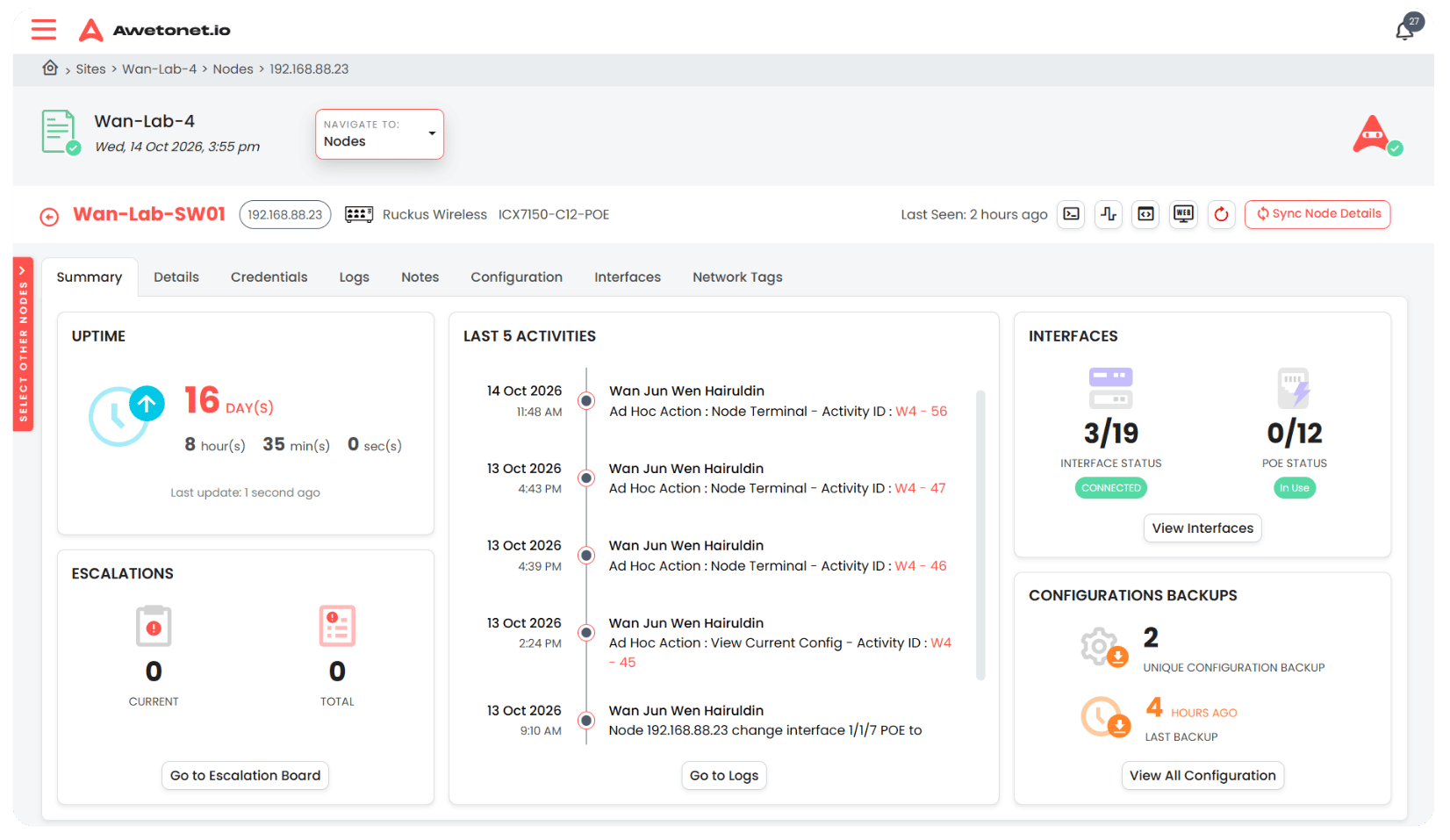
The Node Details page opens with the node's hostname, IP address, node type, and make/model in the header. Available action buttons appear on the right.
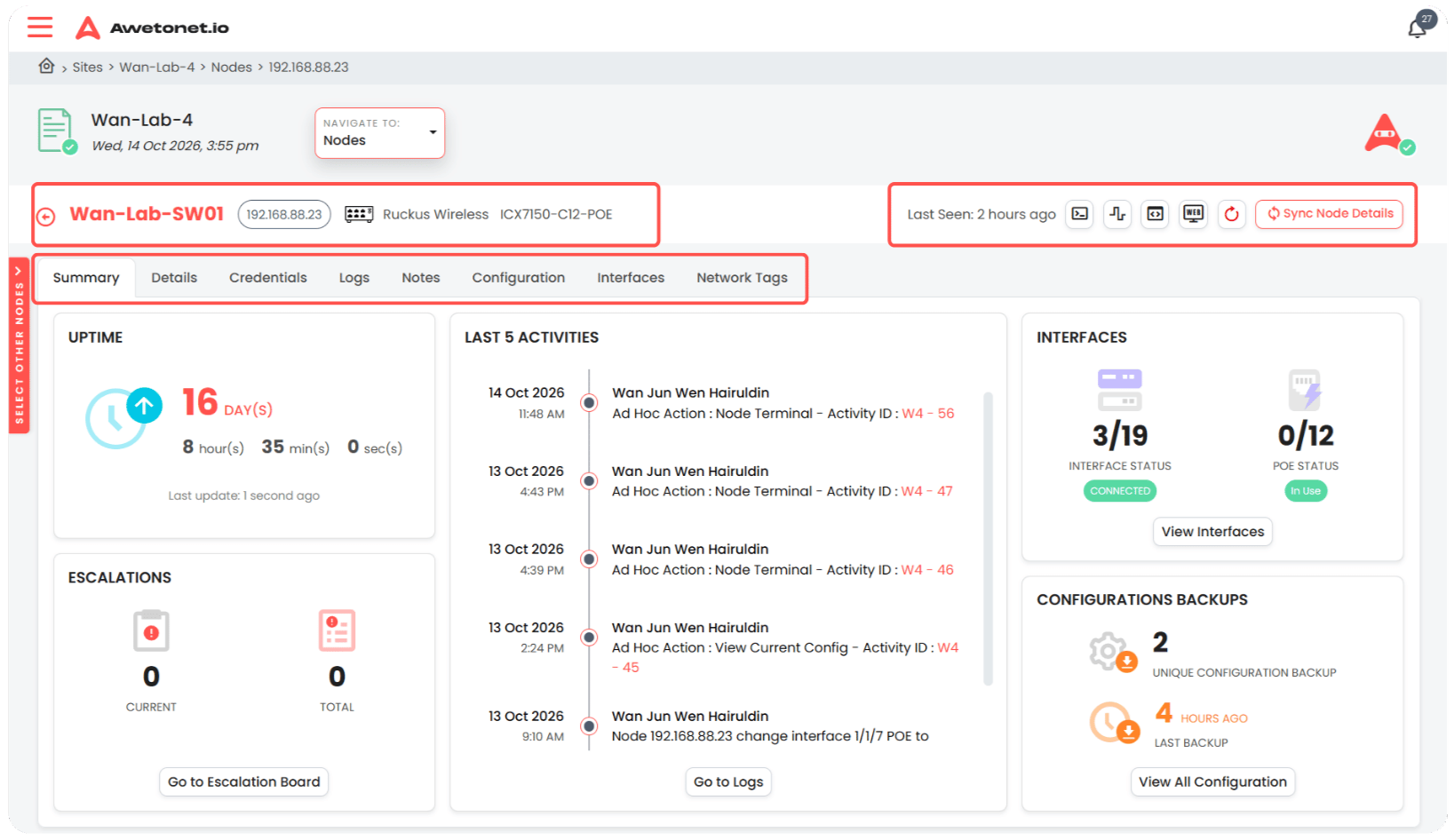
The tabs displayed depend on the node type. All nodes have the following tabs:
- Summary
- Details
- Credentials
- Logs
- Notes
- Network Tags
Most supported node types also have Configuration and Interfaces tabs.
Supported nodes: For the list of supported nodes and available features, visit vsm.awetonet.io.
Summary
The Summary tab provides an overview of the node's current status and recent activity.
It displays:
- Uptime: How long the node has been running.
- Escalations: The current and total escalation counts.
- Recent Activities: The last five activities related to the node, displayed in a timeline.
- Interfaces: The number of connected interfaces compared with the total number of interfaces.
- PoE Usage: For nodes with PoE output, the number of PoE ports in use compared with the total number of PoE ports.
- Configuration Backups: The total number of unique configuration backups and the date and time of the latest backup.
Monitoring Metrics
If SNMP credentials have been entered and the node is supported, a monitoring metrics widget is also displayed.
The widget shows available metrics, including:
- CPU usage
- RAM usage
- Interface bandwidth
The metrics displayed depend on the node's capabilities and the data available through SNMP.
Details
The Details tab contains three sub-tabs: Device, Access Type, and Information.
Node details are populated only when valid credentials have been entered and the node is supported by Awetonet.io. For supported nodes, see vsm.awetonet.io.
Device
The Device sub-tab displays the node's identification and device information:
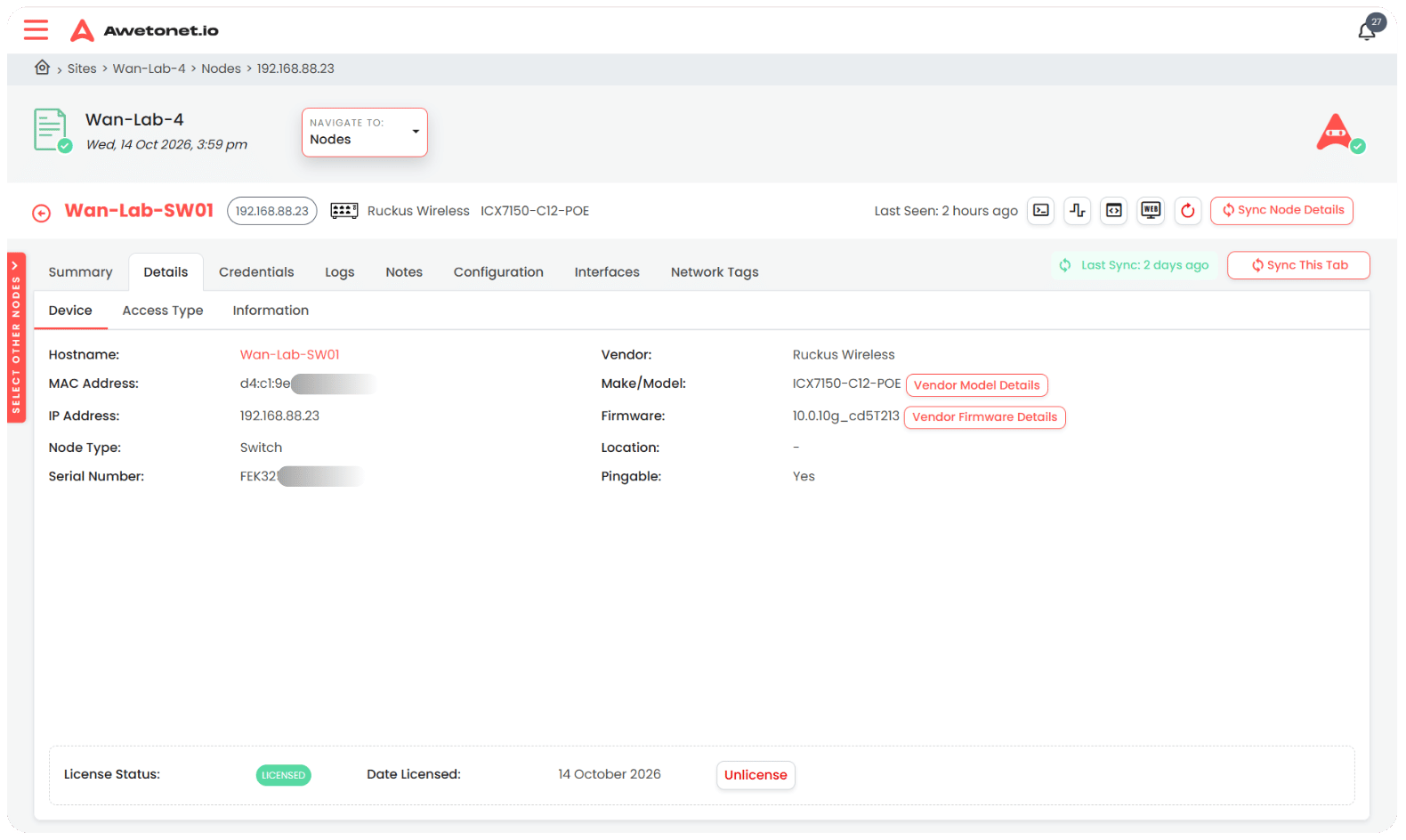
- Hostname
- MAC address
- IP address
- Node type
- Serial number
- Vendor
- Make/model
- Firmware
- Location, based on the SNMP location field
- Pingable status
- License status
Vendor Model Details
Next to the Make/Model field, select Vendor Model Details to open a side panel containing information gathered by Awetonet.io's AI.
The panel may include:
- Manufactured year
- End-of-Life (EOL) information
- End-of-Support (EOS) information
- End-of-Sale (EOSL) information
- Suggested upgrade paths based on the device's current specifications, including alternatives from the same vendor and other vendors
Use this information to assess the device's lifecycle status and possible replacement options.
Vendor Firmware Details
Next to the Firmware field, select Vendor Firmware Details to open a side panel containing firmware information gathered by Awetonet.io's AI.
The panel displays:
- The latest available firmware version
- The major version difference between the current and latest firmware
- The minor version difference between the current and latest firmware
Use this information to assess how far the installed firmware is behind the latest available version.
License Status
The license status indicates whether the node is licensed.
If you have the required permissions, select Unlicense to remove the node's license.
Access Type
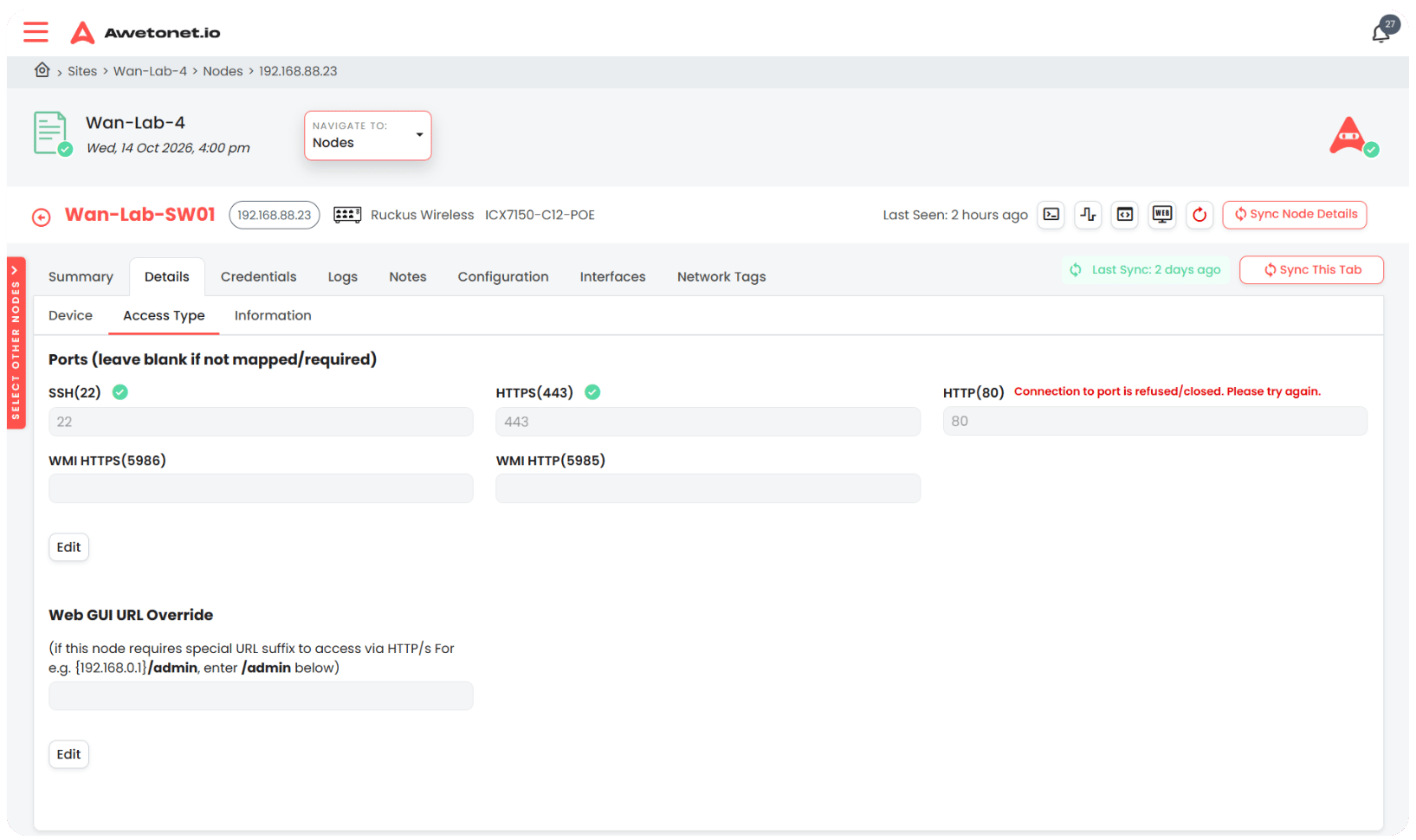
The Access Type sub-tab shows the access services and their configured ports.
Web GUI URL Suffix
The Web GUI override field allows you to add a URL suffix for the node's web interface.
For example, if the web interface is accessed through a path such as /admin, enter admin as the suffix.
To change the suffix:
- Select Edit.
- Enter the required suffix.
- Select Save.
Service Ports
The default service ports are configured for services such as:
- SSH
- HTTPS
- WMI
- SNMP
If a node uses a different port, you can update the port number.
- Select Edit.
- Enter the required port number.
- Select Save.
Awetonet.io checks whether the configured port and service are valid. A green check mark indicates that the check passed.
Information
The Information sub-tab contains asset and procurement details:
- Date Purchased
- Purchased From
- Purchase Order (PO) Number
- Warranty Period From
- Warranty Period To
- Project Code
- Date Installed
You can edit these fields individually. To update information for multiple nodes, use the CSV upload function.
Credentials
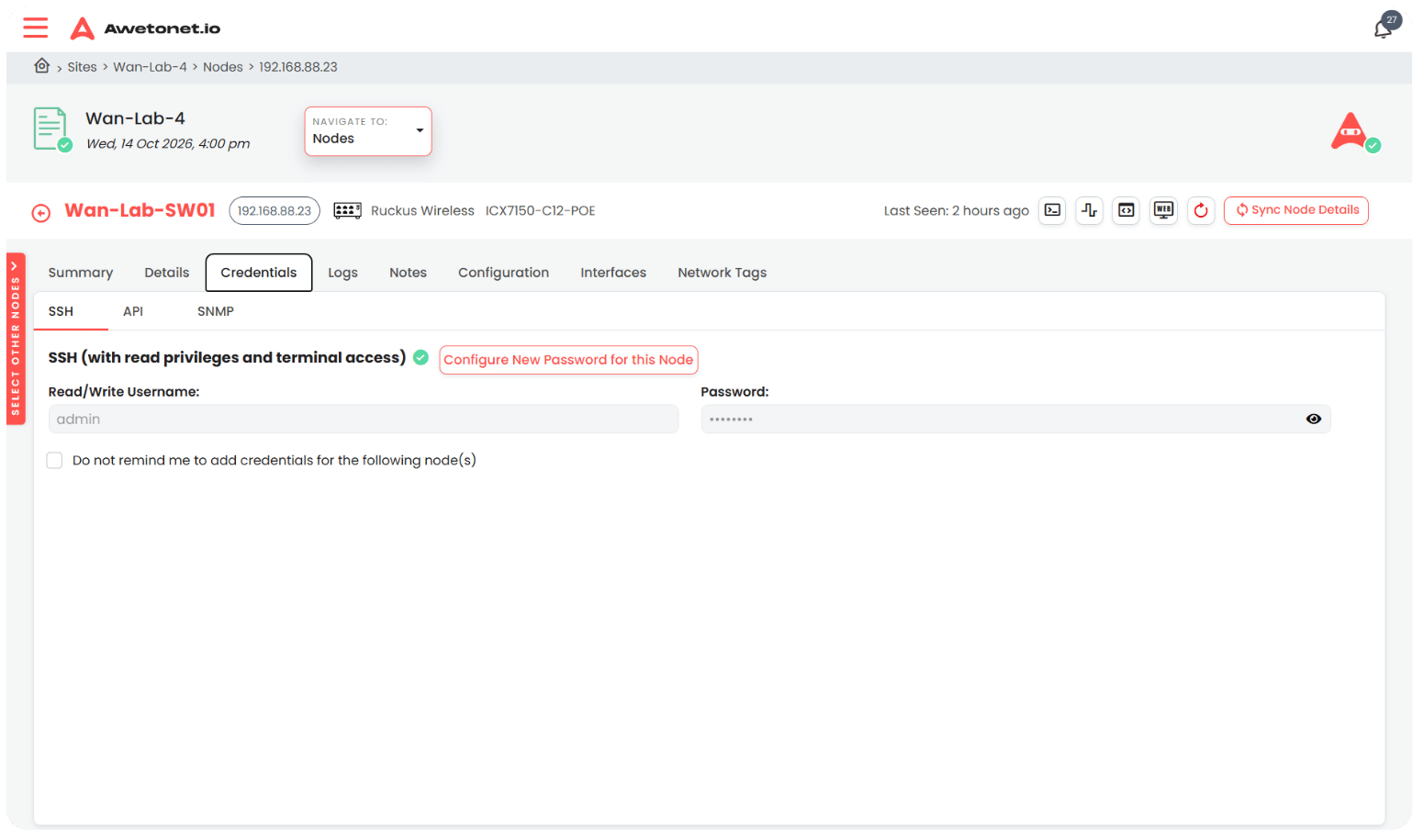
The Credentials tab stores the credentials used to access supported node services, including:
- SSH
- API
- SNMP
Enter and save the credentials for each service as required.
Credentials can also be entered for multiple nodes from the Nodes list using Password Insert.
Credential Status
The credential indicator shows whether credentials have been entered and whether the credentials are valid.
- Exclamation mark: No credentials have been entered for the service.
- Exclamation mark with "Incorrect Credentials": The entered credentials are incorrect.
Enter or correct the credentials and save them. Awetonet.io can then use the credentials for supported operations.
The information and functions available for a node depend on its support status and the credentials entered.
Logs
The Logs tab shows activity related to the selected node.
Timeline
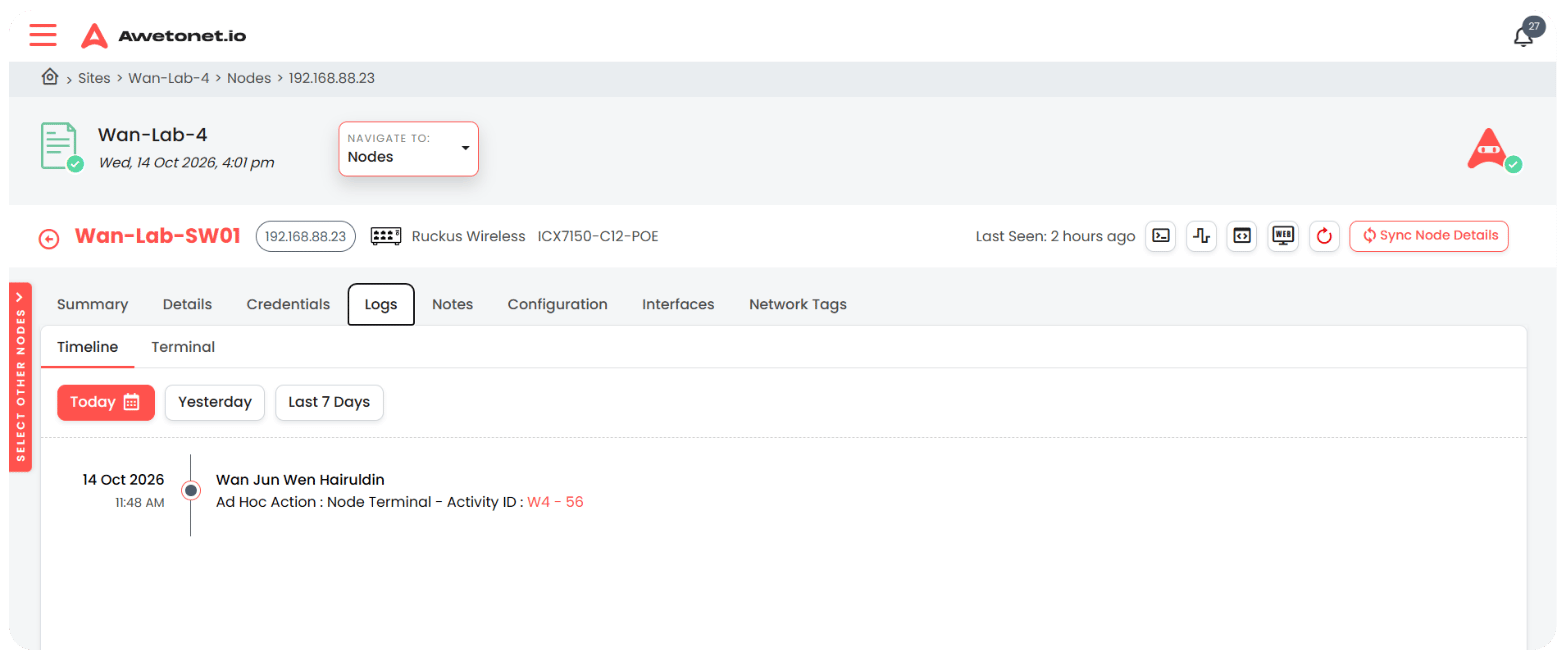
Use the time filter to view logs for:
- Today
- This week
- All time
The available logs depend on the activity performed and the information recorded by Awetonet.io.
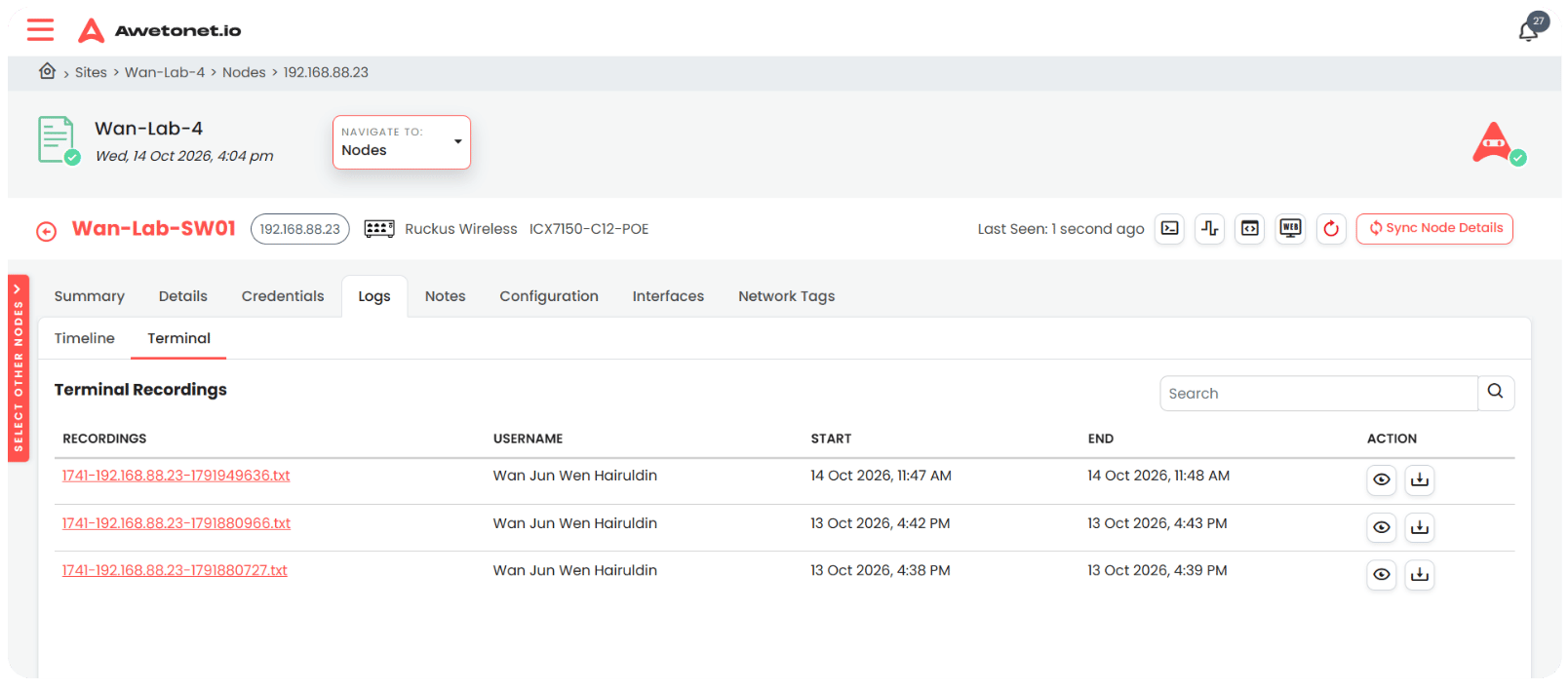
Terminal Logs
Web Terminal logs can be clicked and viewed. Every character entered by any user during a Web Terminal session will be recorded here.
Notes
The Notes tab allows users with the required permissions to add and manage notes for a node.
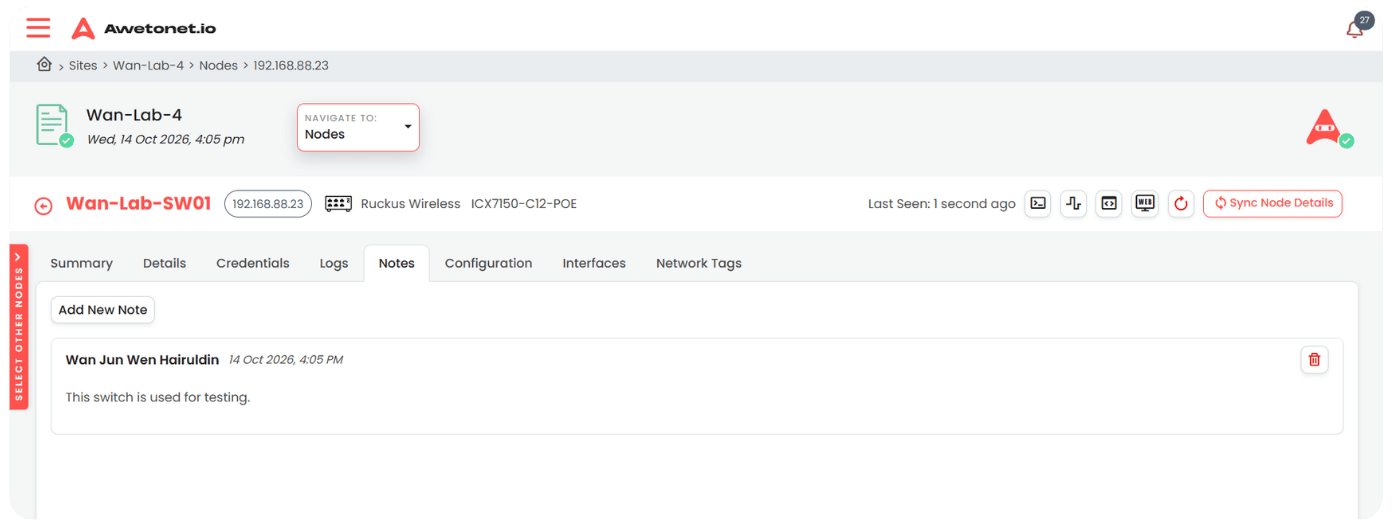
Use notes to record information such as maintenance history, troubleshooting findings, or other details useful to the team.
Depending on your permissions, you can create, view, edit, and delete notes.
Configuration
The Configuration tab provides access to the node's configuration backups.
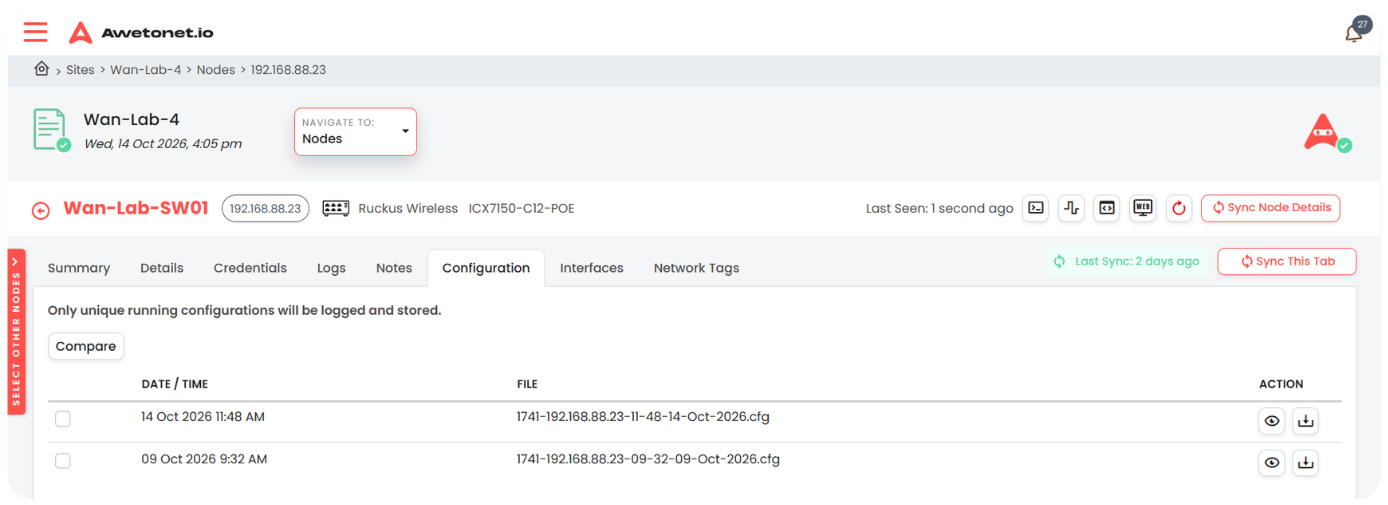
You can:
- View available configuration backups
- Download a configuration file
- Select two different configuration files and compare them
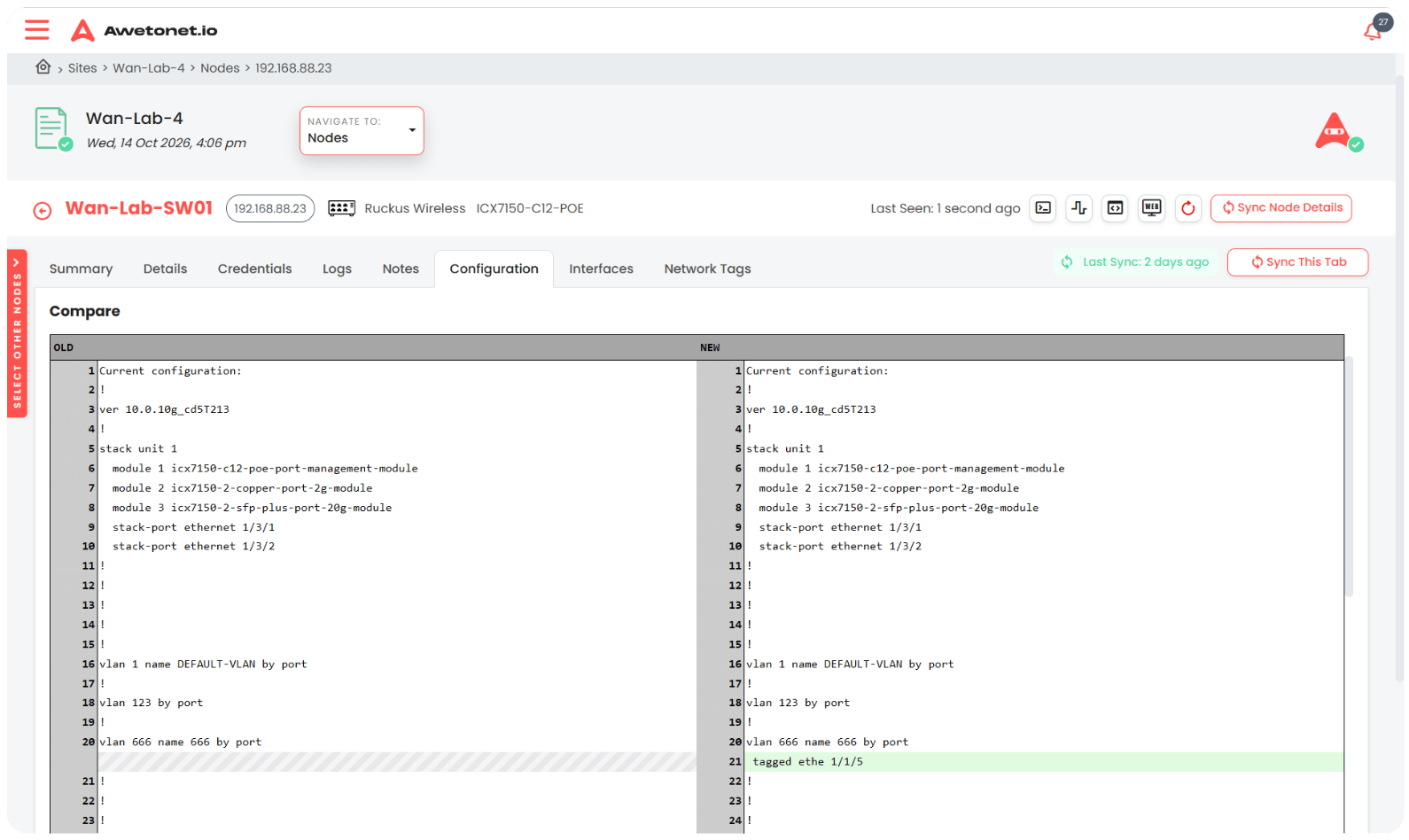
Comparing configurations helps identify changes between backups.
Automatic Configuration Backups
For licensed nodes with the required SSH, RESTCONF, or NETCONF credentials, Awetonet.io checks for configuration changes automatically.
Configuration backups are triggered in two ways:
- Daily check: The Network Versioning Awetomation checks the node's configuration daily.
- After an access session: After every Web Terminal or Web GUI session, Awetonet.io checks whether the configuration has changed.
If the configuration differs from the latest backup, Awetonet.io creates a new backup immediately. If there is no change, a new backup is not created.
Interfaces
The Interfaces tab lists the node's network interfaces and their current status.
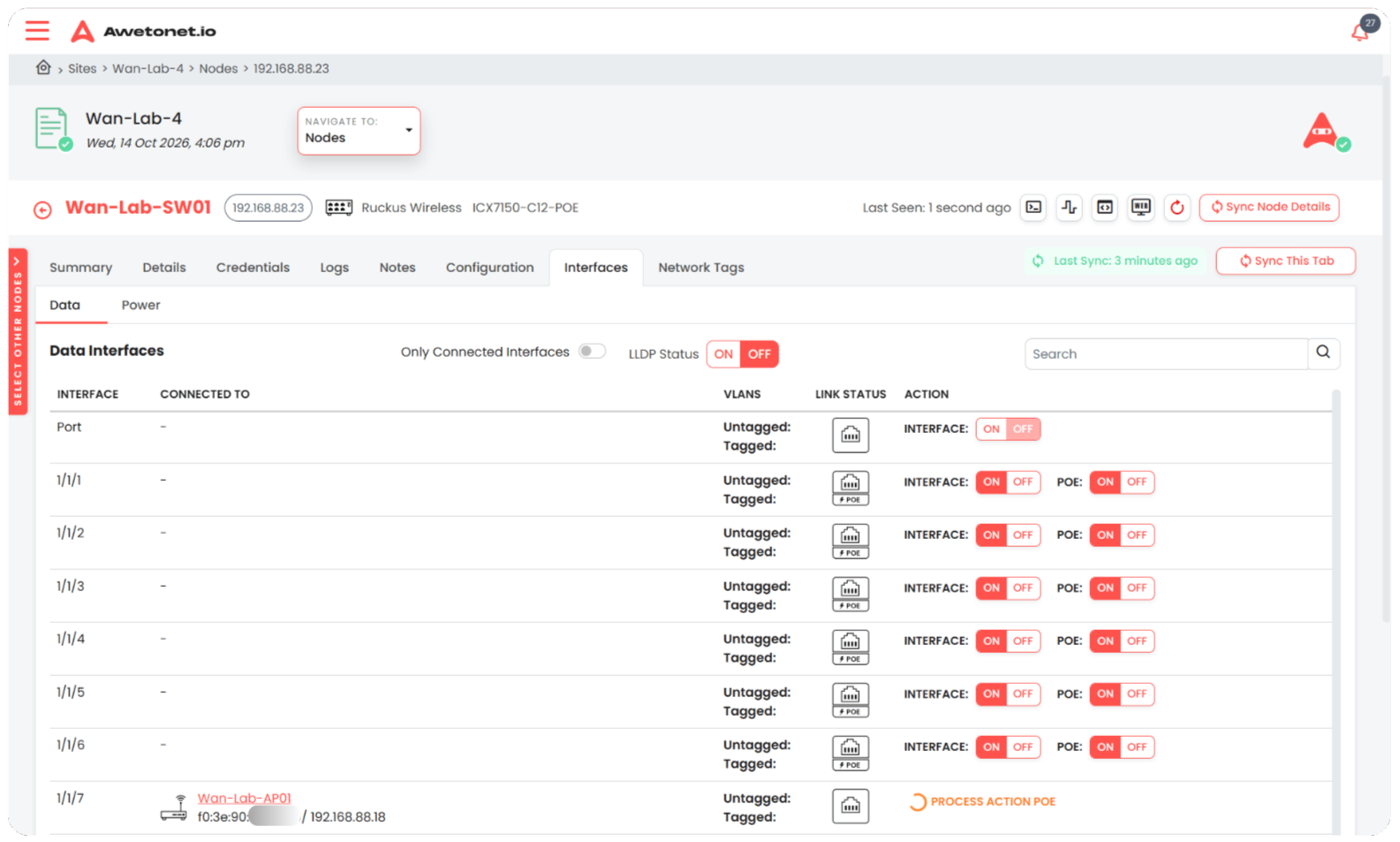
The table includes:
- Interface: The interface name.
- Connected To: The connected device, when known.
- VLANs Tagged and Untagged: VLAN information for the interface.
- Link Status: Whether the interface is connected or disabled.
- Action: Available interface operations.
Connected Devices
The Connected To field identifies the device connected to an interface, when this information is available.
Select the connected node to open its Node Details page.
Link Status and PoE
The link status indicates the interface's current state:
- Green: The interface is connected or in use.
- Greyed out: The interface is disabled.
A PoE indicator is displayed for interfaces that support Power over Ethernet (PoE).
Interface Bandwidth and PoE Usage
If SNMP credentials have been entered, interface bandwidth information is displayed where supported.
For interfaces with supported PoE monitoring, PoE usage information is also displayed.
The availability of these metrics depends on the node's capabilities and the information provided through SNMP.
Enable or Disable an Interface
If you have the required permissions, use the interface's available actions to enable or disable it.
Enable or Disable PoE
For interfaces that support PoE, use the available actions to enable or disable PoE power.
Disabling an interface or PoE may interrupt network connectivity or disconnect powered devices.
Before a disruptive action is applied, Awetonet.io displays a confirmation dialog with a large slider. The dialog provides impact information, including connected downstream nodes and the number of Wi-Fi users affected, where available.
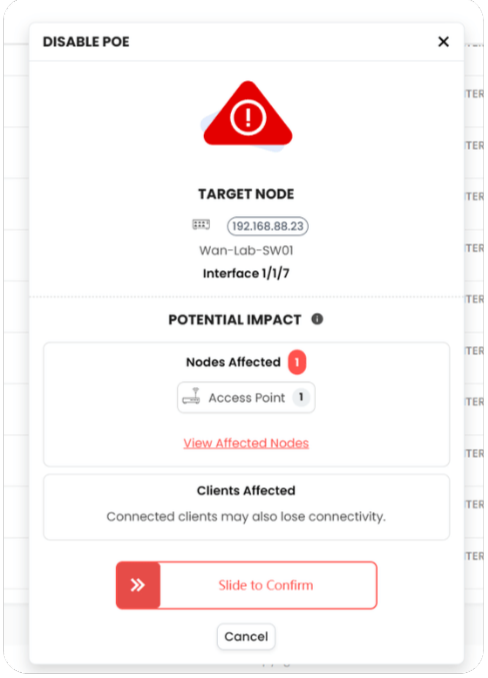
Move the slider to confirm the action.
Network Tags
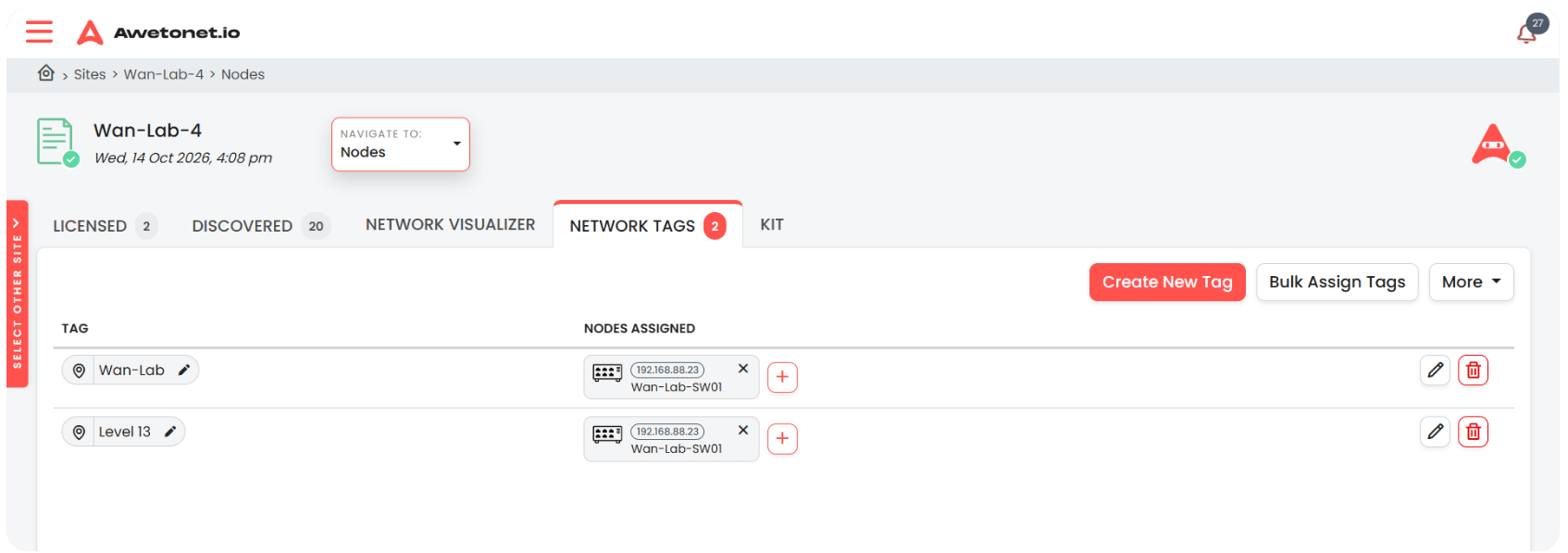
The Network Tags tab allows users with the required permissions to manage tags assigned to the node.
Tags help organise nodes and make it easier to identify devices by role, location, function, or other criteria.
Permissions and Confirmation
The actions available on the Node Details page depend on your assigned permissions and the capabilities of the selected node.
If an action or editing option is unavailable, contact your Site owner to review your permissions.
Awetonet.io requires confirmation for disruptive actions. Review the impact information carefully before moving the confirmation slider and proceeding.